
| Express Menu |  Download |
 Guide |
Express Menu
Introduction
Express Menu is a supplement to the Windows Start Menu. Often the start menu is getting bigger and slower as you install additional programs such as this one :) Express Menu lets you have a second menu that is quick and easy to display and navigate. By the use of a simple hotkey you can display a popup menu with the entries of you choice. You can navigate this popup menu using the arrow keys or the first letter of each entry.
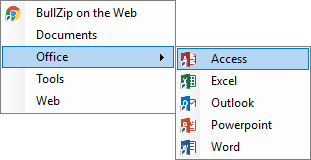
Example of what the popup menu could look like
Using Copy Express Menu
When the Express Menu is installed you can activate it by pressing the "Ctrl + Alt + Z" keyboard combination. This will bring up the menu in the top left corner of the screen.

System tray showing the Express Menu icon
While the program is running you can see a small icon in the system tray in the lower left corner of your desktop. If you right click the Express Menu icon you will get a small menu allowing you to access to the program.
- Show - Displays the menu. This is the same as pressing the "Ctrl + Alt + Z" hotkey combination.
- About - Displays a small about box.
- Edit - Open the folder where the menu shortcuts are defined.
- Exit - Shuts down the Express Menu program.
Installation
Express Menu is installed by downloading the zip-file and extracting it to a directory on you hard disk. Run the setup program from the extracted files. When the installation is finished you should do two things.
- Define your menu. Overwrite the sample menu installed with the program.
- Add the program to your startup programs. Maybe you let the setup program do this for you.
A menu is defined by copying shortcuts and folders to the "menu" folder where the Express Menu was installed. This would be the "C:\Program Files\Bullzip\Express Menu\menu" folder in a default installation of the program.
Adding the program to the startup programs of you computer will make the Express Menu load automatically whenever you computer starts. This way you will always have the menu available on the hotkey.
Ratings
 Softonic |
Version History
2017-07-15 (4.0.6405.28375)
- The application is now DPI aware and scales with the screen resolution.
2017-05-10 (4.0.6339.17225)
- Avoid security warnings for shortcuts on Windows 10.
2016-01-23 (4.0.5866.38678)
- Icons on menu items.
- Menu moved to local application data.
- Support for Windows 10.
2014-01-14 (3.0.5127.16647)
- Uses .NET Framework 4.0.
- Support for Windows 8 and 8.1.
- Hotkey changed from Windows+Z to Ctrl+Alt+Z for compatibility with Windows 8.
2013-11-12 (2.0.5064.27205)
- Auto refresh when menu changes.
2008-09-21 (2.0.3186.20544)
- Uses .NET Framework 2.0.
2005-07-29 (1.0.0.2036)
- Released.